Column Type Conversion
The Convert Column Types tab allows you to convert column data types. Use this when converting strings to numbers or changing date formats.
Basic Usage
Opening the Type Conversion Tab
- Open the Data Table tab
- Click the menu button at the right edge of a column header
- Select Convert Column Types
Configuring Conversion
- In the settings panel on the left, check the columns you want to convert
- Select the target data type in To Type
- Select error handling in On Error
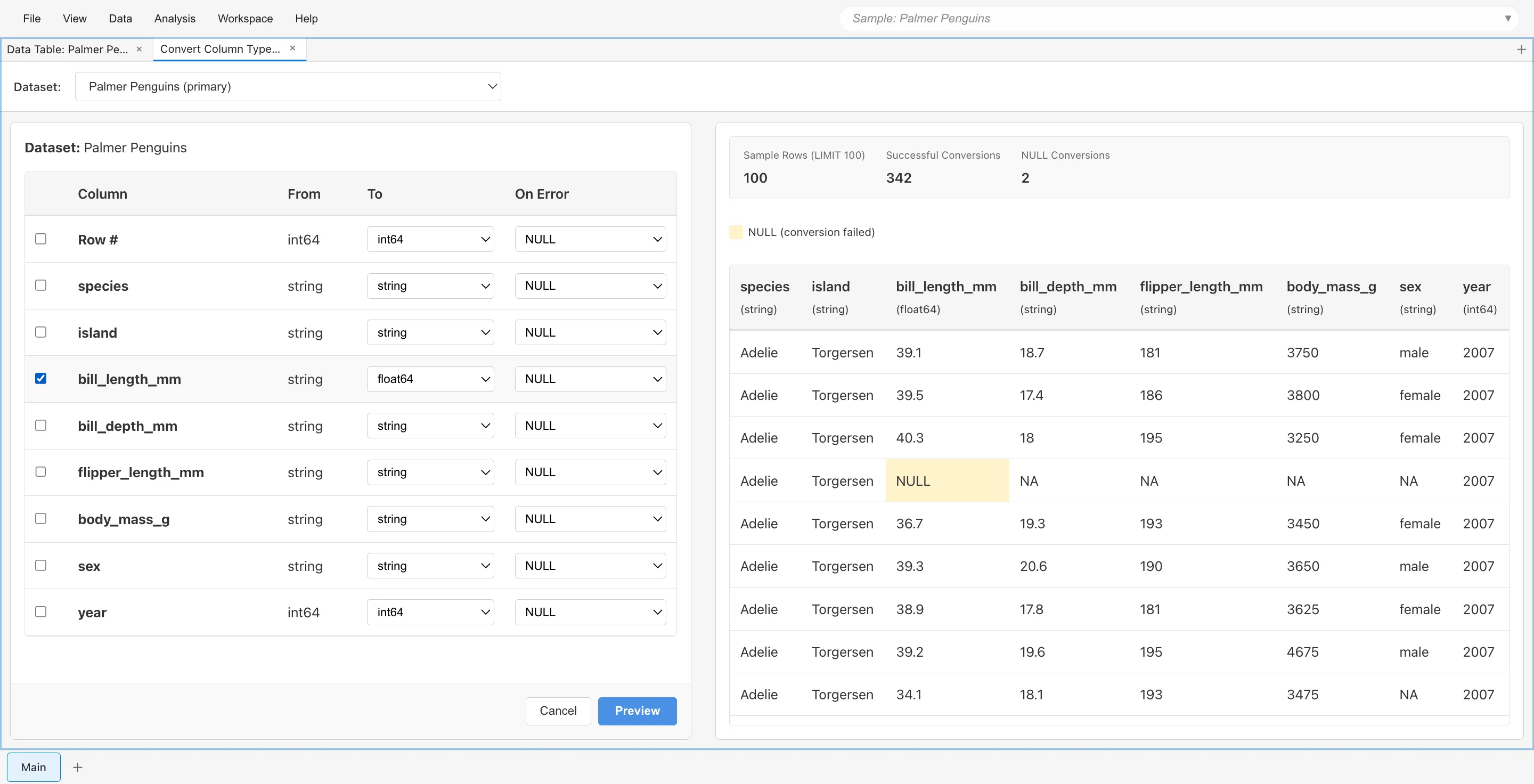
- Click Preview to review the conversion result
- Click Apply to execute the conversion
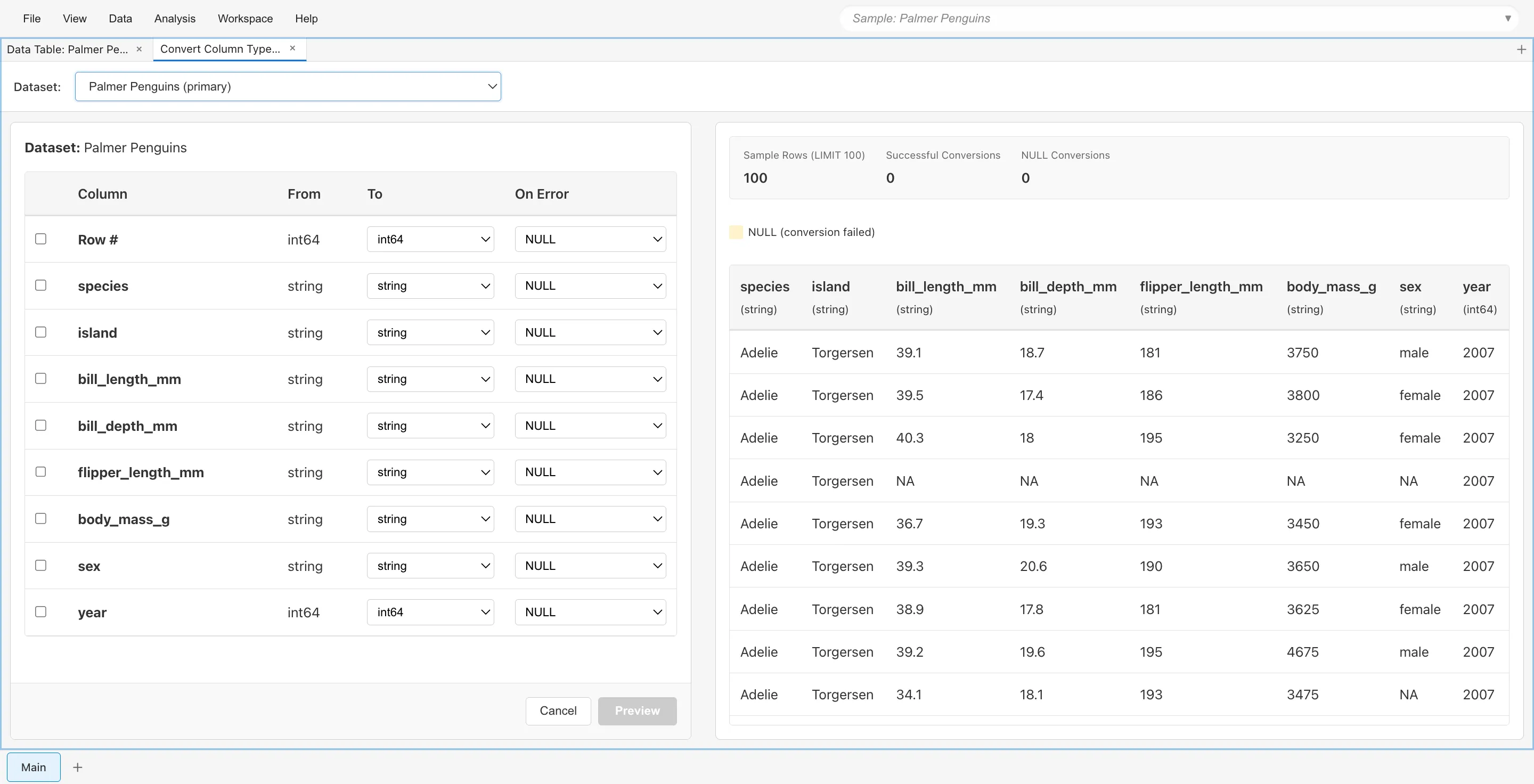
In the following example, the bill_length_mm column is being converted from string to float64.
Data Types
The data types available in MIDAS are:
| Data Type | Description | Examples |
|---|---|---|
boolean |
Boolean value | true, false |
int64 |
Integer | 42, -100 |
float64 |
Decimal | 3.14, -0.5 |
date |
Date | 2024-01-15 |
datetime |
Date and time | 2024-01-15 10:30:00 |
string |
Text | "Hello", "Tokyo" |
Error Handling (On Error)
Choose how to handle values that cannot be converted:
| Option | Description |
|---|---|
| Set to NULL | Replace unconvertible values with NULL (missing) |
| Exclude row | Remove rows containing unconvertible values from the dataset |
Example: String to Integer Conversion
If the original data contains values like "abc" that cannot be converted to numbers:
- Set to NULL:
"abc"becomesNULL(missing value) - Exclude row: The entire row is removed from the dataset
Preview Feature
Click the Preview button to review conversion results before applying. The preview screen displays the converted data, and in Exclude row mode, rows with conversion errors are highlighted. If everything looks correct, click Apply to execute. If there are issues, click Back to return to settings and make adjustments.
Executing Conversion
When you click Apply, a dialog appears to enter a new dataset name. Enter a name and click OK to create the conversion result as a new dataset.
The original dataset is not modified. Conversion results are always saved as a new dataset.
Related Pages
- Data Table - Viewing and manipulating data
- Data Preparation and Import - About data types and measurement scales
- Data Processing with SQL Editor - Advanced data transformation with SQL